Capturing tasks
Type, paste, talk, or snap — the fastest capture wins. AI is optional; the built-in parser works with no key.
The + Task menu
Tap the + Task button to choose how to capture:
| Option | What it does |
|---|---|
| Type or talk a task | Opens the task form. Type, paste, or tap the mic to dictate. Parse reads it with the built-in parser (no key needed); AI from text structures a pasted message (e.g. a WhatsApp note) into fields (needs your key). |
| From a screenshot / photo | Pick an image → choose Task or Event → Saara reads it into fields with AI. The original image stays on the task so you can check the result. |
| Scan with camera | (Mobile) Same, live from the camera. |
| Meeting summary → tasks | Photograph minutes-of-meeting; AI pulls out every action item for you to review and create. |
| Tell Saara (voice/text) | Say it plainly — "add dentist Fri 4pm", "move gym", "mark done". Saara shows a confirm card before acting. |
| Attach a link or file | Paste a Google Doc/Sheet/any URL, or attach an image. |
The task form
However you capture, you land on the task card, where you can set the time, duration, location, meeting link, repeat, area, people and notes before you Release.
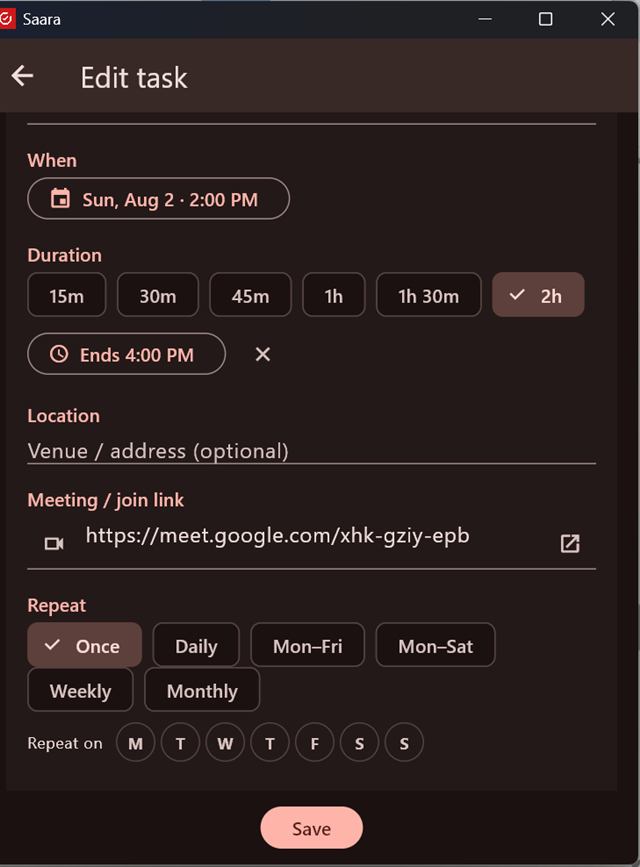
AI is optional. The deterministic Parse works with no key. The AI options (reading screenshots, structuring pasted text) use your own AI key — see Ask Saara & your AI key. If a field looks uncertain, Saara highlights it: "Some fields look uncertain — please review before saving."
Voice, screenshots & sharing in
- Voice — the mic appears in the task form, in "Tell Saara", and in the Saara chat. Tap to dictate; your words stream into the field live.
- Screenshots — Saara doesn't use unreliable on-device OCR; instead your AI key reads the image into fields, and the picture stays on the task so the result is always verifiable against the source.
- Share into Saara (Android) — sharing a Saara ledger file from another app imports your record; it's for moving your data between your own devices, not for dropping arbitrary text into a task.